
Last updated: August 26, 2026
Author: Rabindra — 7+ years of web hosting and control-panel experience
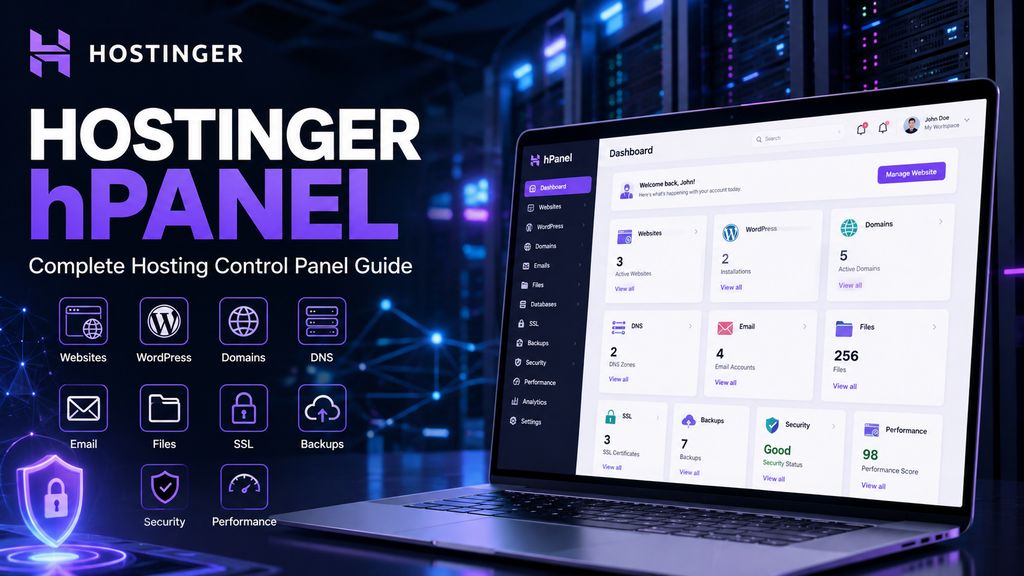
Quick answer: Hostinger hPanel is Hostinger’s custom control panel for managing websites, domains, email, hosting resources, databases, files, DNS, security, backups and other services from one account. It is designed to simplify common website-management tasks, especially for people who do not want to work directly with a server command line.
What Is Hostinger hPanel?
Hostinger hPanel is the web-based control panel Hostinger uses to manage many of its hosting services.
Instead of requiring customers to administer every part of a website through separate tools, hPanel brings a large portion of the day-to-day management experience into one interface.
From hPanel, depending on your Hostinger product, you can manage things such as:
- Websites
- Domains
- DNS records
- Files
- Databases
- SSL
- Backups
- Security
- Performance and CDN settings
- WordPress management
- Hosting resources
- Billing and subscriptions
- VPS services
Hostinger describes hPanel as a custom-made control panel designed to make management of web hosting, email, VPS and other Hostinger services easier.
That makes hPanel particularly useful for website owners who want to spend their time building a site rather than learning a complicated server-management interface.
Hostinger hPanel: Quick Verdict
For most people who run a normal website, hPanel’s biggest advantage is usability.
The interface is organized around the tasks website owners actually perform: creating a website, connecting a domain, configuring email, managing files, editing DNS, installing WordPress, checking backups and adjusting performance settings.
Hostinger’s current hPanel documentation also includes features such as search and favourites, account activity, security settings, language preferences and dark mode, showing that the control panel has evolved beyond a basic hosting dashboard.
My verdict
Best suited for:
- Beginners
- Bloggers
- Affiliate marketers
- WordPress site owners
- Small businesses
- Freelancers
- Users managing several websites
Less suited to:
- People who specifically require a cPanel-only workflow
- Advanced server administrators who need a particular third-party cPanel integration
- Users who want complete server-level control without moving to a VPS or another server-management environment
The important point is not whether hPanel is universally “better” than every other control panel.
It is whether hPanel gives you the tools you need without unnecessary complexity.
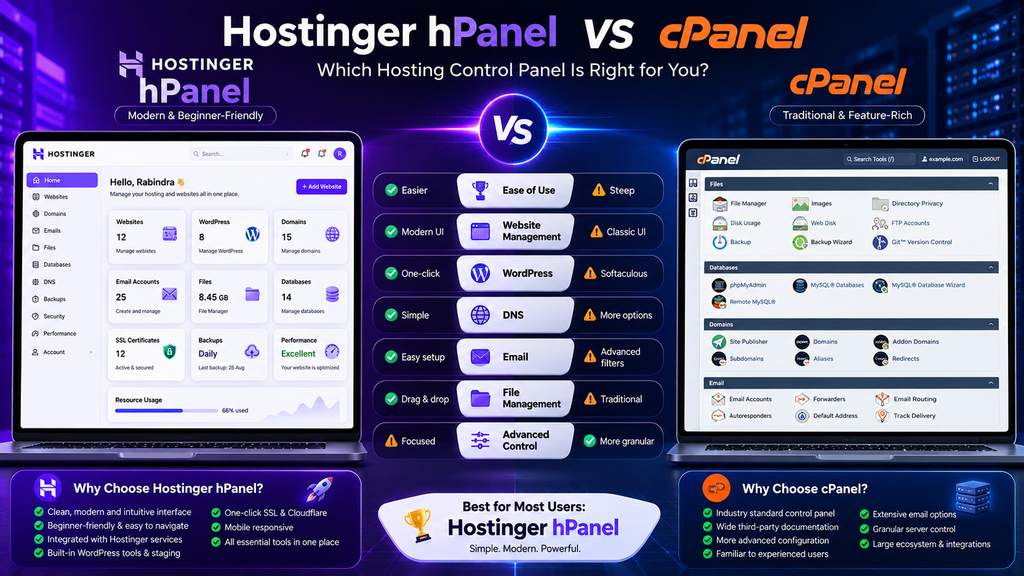
hPanel vs cPanel: What’s the Difference?
This is one of the most common questions.
The two panels solve similar problems, but they take different approaches.
hPanel
Hostinger’s own control panel is designed around its hosting ecosystem and integrates closely with Hostinger’s websites, domains, email, WordPress tools, billing and other services.
cPanel
cPanel is a widely used third-party hosting control panel with its own ecosystem of hosting tools, documentation and integrations.
One important correction to many outdated articles:
It is not accurate to say that Hostinger has completely eliminated cPanel from every hosting product.
Hostinger still publishes documentation for customers using cPanel hosting, including instructions for accessing cPanel email management.
So the better comparison is:
| Area | hPanel | cPanel |
|---|---|---|
| Provider | Hostinger | cPanel |
| Interface | Hostinger-designed | cPanel-designed |
| Hostinger integration | Very strong | Depends on Hostinger product |
| Beginner experience | Generally straightforward | More options can mean more complexity |
| Website management | Strong | Strong |
| File management | Yes | Yes |
| DNS management | Yes | Yes |
| Database management | Yes | Yes |
| Email management | Yes | Yes |
| WordPress management | Strong Hostinger integration | Depends on hosting setup |
| Third-party ecosystem | More Hostinger-specific | Broad cPanel ecosystem |
| Best reason to choose | Simplicity and Hostinger integration | Familiarity, compatibility and cPanel-specific workflows |
There is no need to claim that one interface is objectively faster or that the other is “outdated.” Those are difficult claims to generalize across hosting environments.
The more useful distinction is workflow and ecosystem.
How to Access Hostinger hPanel
Accessing hPanel is simple.
Go to the Hostinger website and sign in to your account.
After login, hPanel becomes the central place where your Hostinger services can be managed. Hostinger’s current documentation says you can also access hPanel directly through hpanel.hostinger.com.
Basic workflow
Hostinger account → Login → hPanel → Websites → Dashboard
For a particular site, open Websites, find the website you want to manage and select its dashboard. Hostinger’s current hosting dashboard documentation uses this workflow for web and cloud hosting.
Can hPanel work on mobile?
Yes.
Hostinger says hPanel can be installed as a Progressive Web App (PWA) from supported browsers, allowing it to be placed on the home screen of a mobile or desktop device.
This is useful for quick tasks such as:
- Checking a website
- Reviewing account activity
- Looking at hosting status
- Managing domains
- Checking notifications
- Performing basic hosting tasks
Understanding the hPanel Home Screen
The exact layout can change as Hostinger adds features, but the main purpose remains the same:
Centralize your Hostinger services.
Current hPanel documentation lists areas such as:
- Billing
- Security
- Account activity
- Notifications
- Language
- Learning resources
- Website management
- Hosting services
It also supports tools such as sidebar search and favourites, which can reduce the amount of menu navigation required.
My tip
Don’t try to memorize every hPanel menu.
Use the search function when you know what you want to do but don’t remember where the feature lives.
That is often faster than clicking through several categories.
The Websites Section: The Most Important Part of hPanel
For most website owners, Websites will be the section you use most.
Hostinger’s current documentation says the Websites section lets you manage websites associated with your hosting plans and identify the platform used by each site. Depending on the website, you can access WordPress admin, the hosting dashboard, a website builder, or other management tools.
You can use it to:
- Add a website
- Open a website dashboard
- Manage multiple websites
- Start a migration
- Connect domains
- Access WordPress
- Open hosting tools
- Change website-related settings
Hostinger currently supports multiple websites on various plans, while the exact limits depend on the hosting product.
How to Add a Website in hPanel
The exact onboarding choices can vary, but Hostinger currently supports several setup paths, including:
- WordPress
- Hostinger Website Builder
- Empty website
- Website migration
Hostinger’s current setup documentation explains that these options appear from the Websites area and that the onboarding process changes depending on which website type you choose.
Basic process
Step 1: Log in to hPanel.
Step 2: Open Websites.
Step 3: Choose the relevant hosting plan.
Step 4: Select Add website where available.
Step 5: Choose your website type.
Step 6: Connect an existing domain, register one, use a temporary domain or follow the migration workflow.
Step 7: Complete the guided setup.
This is one of the areas where hPanel’s integrated design is particularly useful: hosting setup, domains and website creation are connected instead of requiring you to jump between unrelated systems.
WordPress Management in hPanel
This is arguably one of hPanel’s strongest areas.
Hostinger provides a WordPress Overview inside the website dashboard.
According to Hostinger’s current documentation, WordPress Overview can provide tools for:
- WordPress information
- Security
- Theme management
- Plugin management
- Updates
- Staging
- Website copying
- AI troubleshooting
- Maintenance mode
- PHP and WordPress version management
- Cache controls
- Site installation
- Database access
That means you don’t always need to enter wp-admin for basic administration.
How to Install WordPress Through hPanel
The exact onboarding experience can vary, but the basic workflow is:
hPanel → Websites → Add website → WordPress
Hostinger’s current website setup process guides you through defining the website type, entering WordPress administrator credentials, selecting optional plugins or a theme, and connecting or registering a domain.
You can also use Hostinger’s Auto Installer to install WordPress and other applications. Hostinger currently documents automatic installation for applications such as WordPress, Joomla, Drupal and other supported software.
Security tip
Do not use a weak WordPress administrator password.
Also avoid choosing admin as your administrator username when your setup allows you to choose another account name.
WordPress Security and Updates in hPanel
Another useful hPanel feature is WordPress management from outside the WordPress admin dashboard.
Hostinger’s WordPress Overview security tools allow you to review WordPress, theme and plugin versions and manage updates from hPanel.
Hostinger also provides a Smart Auto-Updates option.
Its documentation says you can configure automatic updates for:
- WordPress core
- Plugins
- Themes
and choose between different update policies, including security-only updates or broader updates. Hostinger also takes automatic backups before automatic updates under this system.
That can be useful for website owners who don’t regularly log in to WordPress.
WordPress Staging in hPanel
A staging website is a separate copy where you can test changes before publishing them to your live website.
Hostinger currently provides WordPress staging through hPanel on supported Business-level plans and above. The staging workflow allows you to create a staging environment, test changes and publish or revert them.
This is particularly useful when you are changing:
- Themes
- Plugins
- WordPress settings
- Page layouts
- Code
- Major site functionality
Why staging matters
Without staging, a plugin update can sometimes break the live site.
With staging:
Test → verify → publish
instead of:
Change live site → hope it works
Hostinger File Manager
The File Manager lets you work with website files directly from a web browser.
Hostinger currently documents File Manager for eligible web, cloud and agency hosting websites and supports tasks such as creating folders, creating files, uploading files, editing files and managing permissions.
You can use it for:
- Uploading files
- Editing code
- Creating folders
- Deleting files
- Extracting archives
- Managing permissions
- Viewing storage usage
It can be useful when you don’t want to open an FTP client for a simple change.
Important limitation
File Manager is not identical across every Hostinger service.
Hostinger notes that Website Builder and Horizons use different management models and don’t expose the same file-management interface as conventional PHP/HTML or CMS hosting.
File Permissions in hPanel
For users working with PHP or WordPress, file permissions can matter.
Hostinger currently allows file and folder permissions to be managed through its File Manager on applicable services. Its documentation describes common defaults of:
Files: 644
Directories: 755
and provides tools for resetting permissions when they have been misconfigured.
Be careful
Do not randomly change permissions because a tutorial tells you to.
Incorrect permissions can create:
- Security problems
- Upload problems
- Plugin errors
- Server errors
- Permission-denied messages
Only change them when you understand why the change is required.
Email Management in hPanel
You can manage Hostinger email services from the Emails section of hPanel.
Depending on your email product, you may be able to:
- Create mailboxes
- Delete mailboxes
- Change passwords
- Manage storage
- Create aliases
- Configure forwarding
- Set autoresponders
- Access webmail
Hostinger’s current documentation explains that mailbox management is performed through the Emails section in hPanel.
The exact limits and available email features depend on the email service attached to your account.
Professional email example
You could create:
info@yourdomain.com
support@yourdomain.com
contact@yourdomain.com
This can make an affiliate site, SaaS business or local business website look considerably more professional than using a generic personal address.
How to Access Hostinger Webmail
Hostinger provides a browser-based webmail application for its email services.
You can reach webmail directly or access it from the Emails section in hPanel. Hostinger currently documents both workflows.
For everyday email, you can therefore use:
Browser → Hostinger Mail
or connect the mailbox to another email application using the appropriate account settings.
DNS Management in hPanel
DNS is one of the most important technical functions in hPanel.
DNS records tell the Internet where different services associated with your domain should go.
Hostinger’s current DNS Zone Editor supports common record types including:
- A
- AAAA
- CNAME
- MX
- TXT
- SRV
It also supports additional DNS-management functions such as bulk operations and importing/exporting DNS zones.
Common DNS uses
A record: Connect a domain or hostname to an IPv4 address.
CNAME: Create an alias for another hostname.
MX: Route email.
TXT: Verify ownership or publish services such as SPF-related information.
AAAA: Point a hostname to IPv6.
Important
DNS changes can take time to propagate.
Hostinger says DNS changes may take up to 24 hours to propagate globally.
How to Connect a Domain to Hostinger
You can connect a domain registered at Hostinger or elsewhere.
The process commonly involves:
1. Add the website in hPanel
2. Enter your domain
3. Point the domain to Hostinger
4. Verify nameservers/DNS
5. Wait for propagation
6. Enable or verify SSL
Hostinger’s current documentation provides different instructions depending on where the domain is registered and which type of hosting you use.
Do not blindly copy old nameserver instructions from an unrelated article. Always verify the values Hostinger currently provides for your account and product.
SSL and HTTPS in hPanel
SSL is essential for modern websites.
Hostinger provides SSL-related management tools through its hosting environment and maintains dedicated documentation for claiming, installing and troubleshooting SSL certificates.
With HTTPS, visitors connect to your website through an encrypted connection.
This is especially important for:
- Login pages
- Contact forms
- Ecommerce
- Account dashboards
- Payment workflows
- Any site collecting user information
SSL does not equal complete security
An SSL certificate protects data in transit.
It does not prevent:
- Malware
- Weak passwords
- Vulnerable plugins
- SQL injection
- Account compromise
SSL is one security layer, not the whole security system.
Security Features in hPanel
Security controls available through Hostinger can include different layers depending on your hosting product.
Examples include:
- Two-factor authentication
- Malware scanning
- Firewall/WAF-related protection
- IP protection
- Account activity monitoring
- SSL
- Backups
- WordPress vulnerability/update tools
Hostinger’s current security documentation describes multiple layers rather than treating “firewall” as a single security product.
My recommendation
At minimum:
Strong password + 2FA + SSL + software updates + backups
Then add additional security layers when the website’s risk justifies them.
Hostinger Firewall and hPanel
If you have read about Hostinger Firewall, remember that it is not necessarily one button that represents your entire security posture.
Hostinger documents network-level protection, WAF/security controls, malware scanning, CDN protection and related security features across its infrastructure.
Your exact controls depend on the hosting environment.
For WordPress, infrastructure security should be combined with:
- Secure administrator accounts
- Plugin updates
- Theme updates
- Backups
- 2FA
- Optional application-level security
Performance Tools in hPanel
hPanel also connects website management with performance tools.
Depending on your hosting environment, you may find:
- Cache management
- CDN controls
- Resource usage
- PHP configuration
- Performance settings
- Object caching
- Website analytics
Hostinger’s current WordPress Overview includes performance and cache-related tools, including LiteSpeed-related settings on supported environments.
Don’t confuse every speed setting
A CDN, server cache, browser cache and WordPress cache solve different problems.
When troubleshooting performance, change one important variable at a time.
Hostinger CDN vs Cloudflare
Hostinger currently offers its own CDN on eligible services and also documents how customers can use Cloudflare.
Hostinger specifically warns that only one CDN should be active at a time for a website.
This matters because running overlapping CDN/proxy systems can create:
- Redirect loops
- Cache problems
- Incorrect headers
- SSL conflicts
- Debugging difficulties
General rule
Choose one primary CDN/proxy layer and configure it correctly.
Don’t enable several simply because each one advertises performance improvements.
Backups in hPanel
Backups are one of the most valuable features in a hosting control panel.
Hostinger provides backup management through hPanel, but the backup schedule depends on the hosting plan.
Hostinger currently states that web hosting plans receive weekly backups, while daily backups are included on higher-tier web plans and can be added to certain lower-tier plans.
For WordPress, Hostinger also uses backups before supported automatic updates so that a previous version can be restored if something goes wrong.
My backup rule
Don’t ask:
“Does my host have backups?”
Ask:
“Can I restore my site when I actually need to?”
A backup is only useful when restoration works.
For important websites, an additional independent backup is also worth considering.
Analytics and Logs in hPanel
Hostinger’s hosting dashboard includes analytics and log-related tools for supported websites.
Current Hostinger documentation describes analytics information such as:
- Requests
- Bandwidth
- Visitor geography
- Device information
- Access logs
- HTTP 4xx responses
- HTTP 5xx responses
These tools can help diagnose problems.
For example:
A sudden spike in 404 errors may indicate broken links.
A spike in 5xx errors may indicate server or application problems.
An unusual request pattern may indicate bot activity.
This is where hPanel becomes more than a “control panel” and starts functioning as a practical website operations dashboard.
How to Use hPanel to Troubleshoot a Website
When a website breaks, don’t randomly change ten settings.
Use a process.
Step 1: Check the website status
Is the whole site unavailable or only one page?
Step 2: Check logs
Look at access and error logs if available.
Step 3: Check recent changes
Did you recently:
- Install a plugin?
- Change DNS?
- Change SSL?
- Update WordPress?
- Modify
.htaccess? - Change PHP?
- Enable a CDN?
Step 4: Check resources
Unexpected resource usage can indicate:
- Traffic spikes
- Broken scripts
- Bad plugins
- Crawlers
- Security incidents
Step 5: Restore if necessary
Use a known-good backup when troubleshooting becomes risky.
This approach is much safer than changing random server settings until something works.
Hostinger hPanel for Freelancers and Agencies
hPanel becomes especially useful when you manage several websites.
Hostinger’s Websites section supports multiple sites on eligible plans and provides tools for searching and filtering websites.
For a freelancer, that can mean:
Client website A
→ WordPress dashboard
Client website B
→ File Manager
Client website C
→ DNS
Client website D
→ Email
all within the same general management environment.
Agency-oriented hosting also has additional website-management workflows and permissions, so agencies should verify the exact feature set for their plan.
hPanel for Affiliate Marketers
For an affiliate marketer, hPanel can cover many routine operations:
- Domain management
- WordPress installation
- SSL
- DNS
- Files
- Backups
- Security
- Performance
- Website analytics
This makes it possible to manage the technical side of an affiliate site without constantly switching between several administrative dashboards.
But remember:
Hosting is infrastructure.
Traffic still comes from:
- Search
- Content
- Links
- Social media
- Partnerships
- Community
- Brand discovery
A good control panel does not replace a strong content strategy.
hPanel Tips That Save Time
1. Use the search function
Instead of browsing every menu, search for the tool you need.
Hostinger’s current hPanel supports sidebar search.
2. Pin frequently used tools
hPanel supports favourites/pinned sidebar items, which can reduce repetitive navigation.
3. Enable 2FA
Hosting accounts are valuable targets.
Use two-factor authentication wherever available. Hostinger explicitly recommends enabling 2FA for account protection.
4. Use staging before major WordPress changes
Especially for plugins, themes and site configuration.
5. Keep backups
Don’t wait until a website fails to discover that your backup strategy is incomplete.
6. Check logs when something suddenly changes
Don’t assume every outage is a hosting problem.
7. Don’t change DNS casually
One incorrect DNS record can break:
- Websites
- Verification
- Third-party services
8. Avoid running multiple CDNs
Hostinger currently recommends using only one CDN at a time.
What I Like About hPanel
The strongest part of hPanel is not one individual feature.
It is the integration between features.
For example:
Domain → Website → WordPress → SSL → DNS → Email → Files → Backups
can be managed through one Hostinger-centered workflow.
The WordPress Overview also reduces the need to enter WordPress admin for several routine tasks, such as updates, security checks and certain configuration actions.
For beginners, that can significantly reduce the number of concepts they need to learn before launching a website.
What I Don’t Like About hPanel
The biggest limitation is the same thing that makes hPanel easy to use:
It is opinionated.
A tightly integrated control panel can be excellent for common tasks, but advanced users sometimes want access to a specific tool, menu or third-party integration that isn’t part of the standard workflow.
There is also a large amount of cPanel-based documentation across the wider web.
So if you search:
“How do I do X in cPanel?”
you may find hundreds of tutorials that don’t directly match hPanel.
The solution is not to assume hPanel lacks the capability.
Search for:
“Hostinger hPanel + task”
and use Hostinger’s current documentation when the interface has changed.
Is hPanel Better Than cPanel?
There is no universal answer.
hPanel is a better fit when you value:
- Simplicity
- Integrated Hostinger services
- Guided workflows
- WordPress-focused management
- A cleaner task-oriented approach
cPanel may be a better fit when you need:
- A specific cPanel workflow
- cPanel-focused third-party tools
- Familiarity with an existing cPanel environment
- A particular server-management feature in a compatible hosting setup
The best choice is the environment that supports your workflow.
Is hPanel Good for Beginners?
Yes.
Its biggest advantage for beginners is that the interface is organized around actions rather than requiring users to understand server architecture first.
You can start with:
Create website
then:
Connect domain
then:
Install WordPress
then:
Enable SSL
then:
Create email
then:
Publish content
That sequence mirrors how a beginner thinks about launching a website.
Is hPanel Good for WordPress?
For Hostinger users running WordPress, hPanel is particularly useful because Hostinger integrates WordPress-specific tools into the hosting dashboard.
The current WordPress Overview can provide access to:
- Updates
- Plugin/theme management
- Security checks
- Staging
- Maintenance mode
- Cache controls
- PHP settings
- Backups
- Database access
That can save time compared with handling every task independently.
Is hPanel Free?
For customers using Hostinger services that provide hPanel access, there is generally no separate hPanel license you need to purchase.
The control panel is part of the Hostinger service experience.
However, some advanced tools, services or features may depend on your hosting plan.
This distinction matters:
hPanel access ≠ every feature included in every plan.
Always check your specific hosting package before assuming a feature is included.
Does hPanel Work With VPS?
Hostinger’s current documentation includes hPanel as the central account interface for managing Hostinger services, including VPS-related services.
However, VPS management is different from ordinary shared/web hosting.
With a VPS, the exact server-management environment depends on the operating system, control panel or template you choose.
For example, Hostinger’s VPS documentation includes guides for different server software and control panels.
So don’t assume the web-hosting hPanel workflow and a VPS server-management workflow are identical.
Hostinger hPanel FAQ
What is hPanel?
hPanel is Hostinger’s custom control panel used to manage hosting, websites, domains, email, VPS services, security, billing and other Hostinger services.
Does Hostinger use hPanel or cPanel?
Hostinger uses hPanel for many of its modern hosting workflows, but it also documents cPanel hosting products. Therefore, it is inaccurate to say that no Hostinger service uses cPanel.
Is hPanel easier than cPanel?
For many beginners, hPanel can feel easier because its workflows are closely integrated with Hostinger’s services. But whether it is “easier” ultimately depends on your experience and the tasks you perform.
Can I install WordPress from hPanel?
Yes. Hostinger provides WordPress onboarding and automatic installation through hPanel.
Can I manage WordPress without entering wp-admin?
For some tasks, yes. Hostinger’s WordPress Overview lets you manage certain WordPress settings, updates, themes and plugins from hPanel.
Does hPanel have a File Manager?
Yes, for supported hosting environments. Hostinger provides a browser-based File Manager for managing website files.
Can I edit DNS records in hPanel?
Yes, when the domain and hosting setup supports Hostinger’s DNS management. The DNS Zone Editor supports records such as A, AAAA, CNAME, MX, TXT and SRV.
Can I create email accounts in hPanel?
Yes. Hostinger’s Emails section allows you to create and manage eligible email mailboxes.
Does hPanel support backups?
Yes. Backup management is available through hPanel, although the schedule and options depend on the hosting plan.
Can I use Cloudflare with Hostinger?
Yes. Hostinger provides documentation for using Cloudflare with domains hosted on Hostinger. Hostinger also recommends using only one CDN at a time.
Can I use hPanel on a phone?
Yes. Hostinger documents installation of hPanel as a Progressive Web App on supported desktop and Android browsers.
Does hPanel include a staging environment?
Hostinger provides WordPress staging on supported Business-level plans and above, with plan availability subject to change.
Can I manage multiple websites in hPanel?
Yes, if your hosting plan supports multiple websites. Hostinger provides a Websites section for managing multiple sites.
Is hPanel suitable for an affiliate website?
Yes. It provides the core infrastructure tools needed to manage a typical WordPress-based affiliate website, although success still depends primarily on content, traffic acquisition, technical SEO and conversion optimization.
Final Verdict: Is Hostinger hPanel Worth Using?
Yes—for most website owners, hPanel is a practical and well-integrated hosting control panel.
Its biggest strength is not that it has magically eliminated every complexity associated with web hosting.
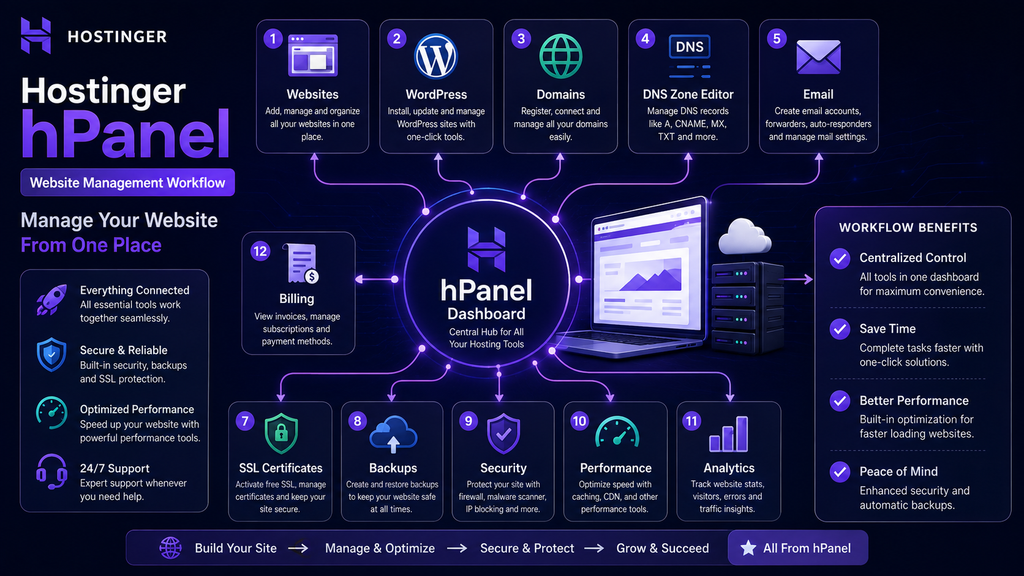
Its strength is that it puts many common tasks into a single workflow:
Websites → Domains → DNS → WordPress → Files → Email → SSL → Security → Backups → Performance
For a beginner, that can make the difference between:
“I don’t know where to start.”
and:
“I can manage my website myself.”
For an experienced developer, hPanel is still useful for routine hosting operations, while advanced server work may require SSH, specialized tools, a VPS control panel or another management environment.
My overall assessment
For beginners: Excellent
For bloggers: Excellent
For WordPress users: Very strong
For affiliate websites: Very strong
For small businesses: Strong
For developers: Good, depending on the workflow
For advanced server administrators: Depends heavily on the hosting product and required tooling
The best reason to choose hPanel is therefore not:
“It’s better than cPanel at everything.”
It is:
“It makes the everyday work of running a website easier within the Hostinger ecosystem.”
Try Hostinger and explore hPanel →
How This Guide Is Maintained
Hosting control panels change.
Menu names move.
New tools are added.
Plan features change.
Hostinger also has different management experiences for different products, including web hosting, cloud hosting, agency hosting, VPS, Website Builder and other services.
For that reason, this article focuses on the concepts and workflows that remain useful over time instead of hard-coding a particular year’s interface or claiming that every plan has identical features.
When Hostinger materially changes hPanel, this guide should be updated with:
- New navigation paths
- New screenshots
- New WordPress tools
- New security features
- New hosting-plan differences
- New DNS capabilities
- New performance controls
That gives the page a much longer useful life than an article titled “hPanel 2026.”
Affiliate Disclosure
This article contains affiliate links. If you purchase Hostinger through our referral link, we may earn a commission at no additional cost to you.
Our goal is to explain the platform honestly, including both its strengths and its limitations, so readers can decide whether Hostinger fits their website.
We do not recommend a hosting plan simply because it pays an affiliate commission.
Recommended starting point:
Explore Hostinger hosting and hPanel →